
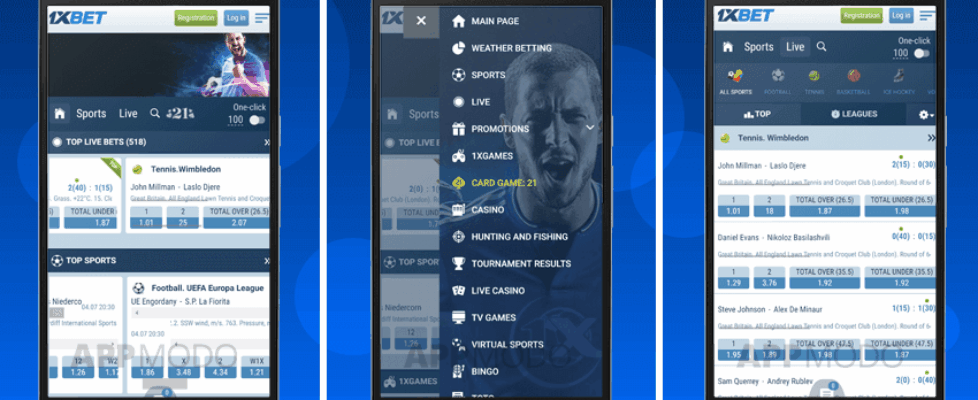
What Changes After a 1xBet App Update
Three screens can shift after a single 1xBet app update: the sports list, the bet slip panel, and the settings menu. Users often assume something broke when it simply moved. A few minutes of checking usually reveals a new location rather than a real fault. This guide walks through the common shifts so you can settle back into the app quickly.
Why the app looked different after the update
The home screen layout was reordered
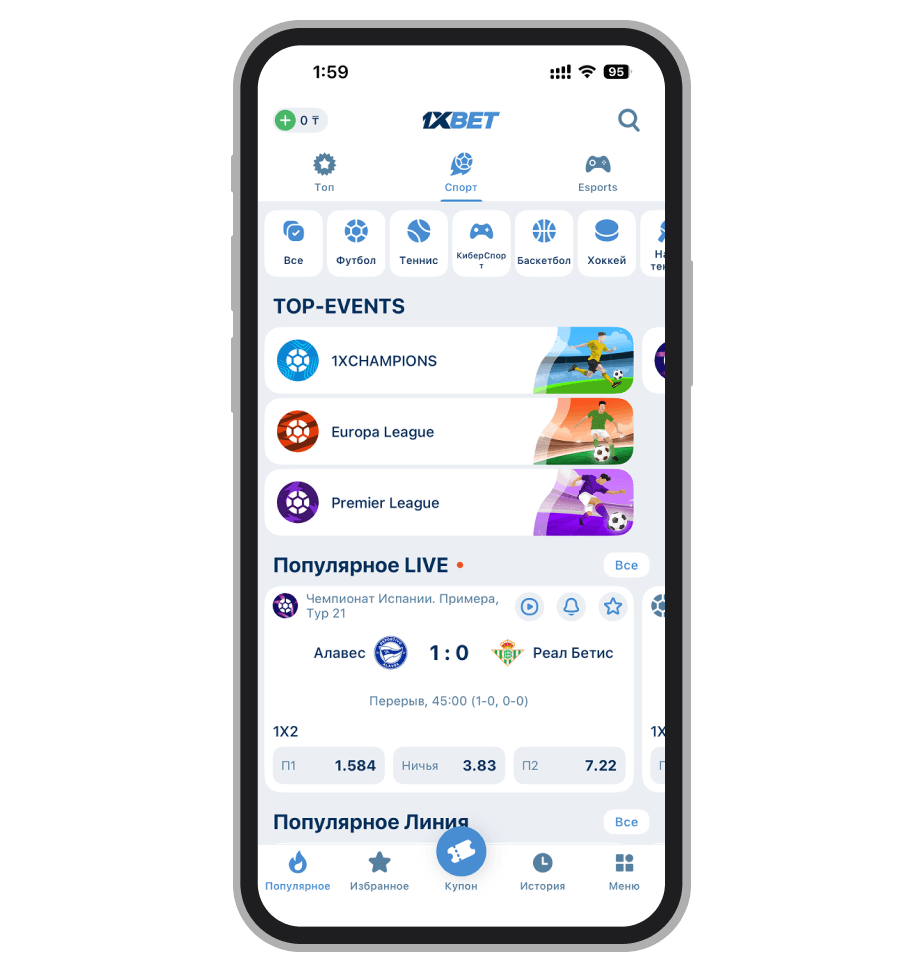
Developers sometimes rearrange the main screen so popular events sit higher. A live match strip that used to sit under the header may move below the top leagues row. If you open the 1xBet app and cannot find your usual shortcuts, scroll once before panicking. The navigation bar at the bottom usually keeps the same five icons after an update.
The horizontal category bar near the top may also gain a new label. A tab called “Highlights” can appear between “Popular” and “Live”. Tap each label once to see where your usual events landed. Search remains in the magnifying glass icon at the top right corner.
Navigation moved to a different tab
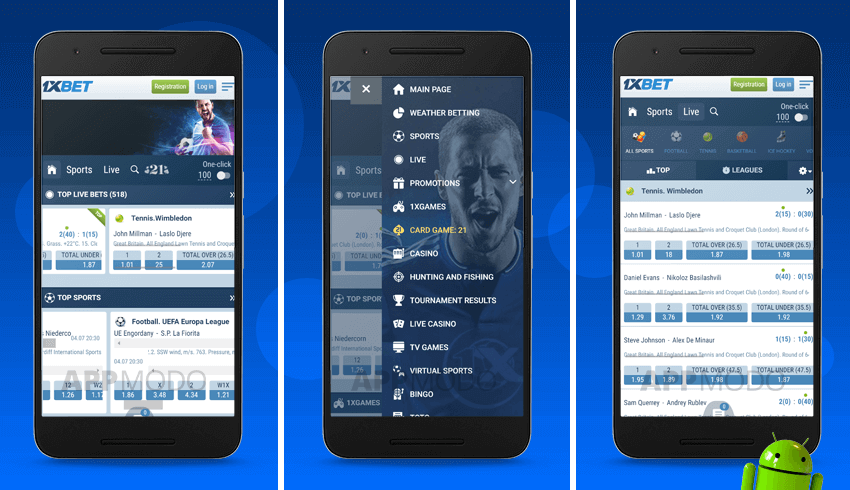
An update can push a menu item one level deeper than before. Your old path to the bet slip history might now live under the profile icon instead of the sports tab. This kind of move happens quietly, with no warning dialog. Tap through the bottom bar in the 1xBet app and you will find it within a few seconds.
Coupon history is a frequent mover. It may sit under Menu, then “Bet History”, rather than beside the bet slip itself. If the section appears blank, tap the date filter and widen the range to thirty days. The slip itself still opens from the floating button at the bottom right.
Default settings were reset
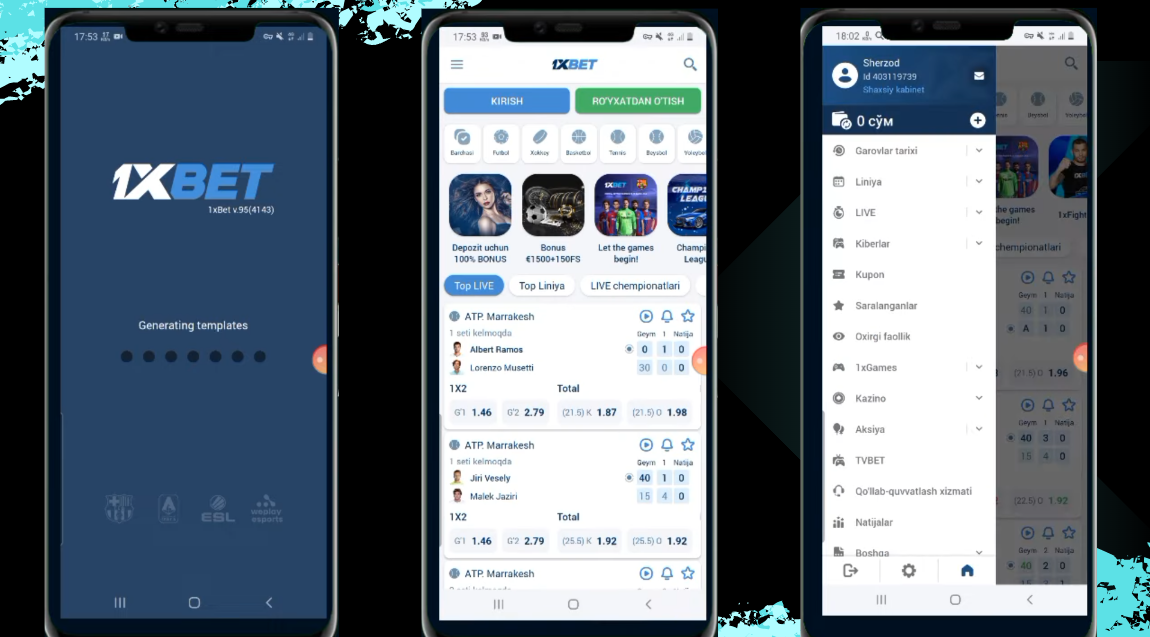
Some updates clear local preferences to load new configuration files cleanly. Odds format, notifications, and biometric login may return to their original values. Check Settings in the 1xBet app right after installing. Re-select decimal odds and turn notifications back on if they were off before the update.
Open Menu, then Settings, then the “Odds format” row. Choose Decimal, Fractional, or American with a single tap. Biometric toggle sits one row lower under “Security”. The change applies immediately and carries over to the next session.
A permission was taken away
The package installer prompt sometimes asks again for storage or notification access. If you tapped deny, the app cannot save your bet slip cache or push score alerts. Open Android Settings, find 1xBet under App info, and re-enable notifications and storage. Re-granting takes a few seconds and restores the previous behaviour.
Inside App info, tap Notifications first and switch the master toggle back on. Then tap Permissions, choose Files and media, and set it to Allow. Both steps finish in under ten seconds. Android may also reset battery optimisation, so exclude 1xBet from aggressive sleep mode.
How to prevent this next time
- Back up your login credentials before starting any update.
- Write down your current odds format and notification preferences.
- Use Wi-Fi so the download entry in the notification shade completes in a minute or two.
- Leave the “Install unknown apps” toggle enabled for your Files app to avoid extra prompts.
- Open the package installer prompt and confirm within a few seconds of the prompt appearing.
Before you tap update, open Settings in the 1xBet app and note which options you have changed. After installing, walk through those same screens and compare. This two-minute check catches most surprises. If you plan bigger staking changes, consider the support from GambleAware resources before adjusting your routine. A fresh install from a trusted source also reduces the chance that a broken package reaches your phone.
Keep a note on your phone that lists your favourite leagues and preferred odds format. After the next release, open Menu, then Settings, and tick off each entry. The whole routine takes about two minutes.
When to contact support
Most layout shifts after a 1xBet update clear on their own within a session or two. Contact the support team when the bet slip refuses to load. Odds freezing on every event, or bet history showing nothing after a stake, also signal trouble. These three symptoms usually point to a corrupted installation rather than a normal refresh.
Open the Menu tab, tap the headset icon, and choose Live Chat. Have your ID number and the stake amount ready. If live chat stays silent for more than a few minutes, switch to the callback request form.
- Bet slip stays empty even after adding three selections
- Deposit reaches the wallet but the balance does not change
- Verification page loops back to the start every time
- App closes the moment the bet slip is confirmed
If the App Store or Google Play listing already shows the current release, skip that path. Download a fresh 1xbet new android app file from the official 1xBet download page. The package installer prompt will appear within seconds after the download entry leaves the notification shade. Let the whole install finish before opening the Menu tab again.
FAQ
Why did my bet slip layout change after the update?
1xBet often reshuffles the bet slip between releases to fit more selections on a phone screen. The core odds and stake fields stay the same, only the row order moves.
Where is the live chat after I update the app?
It sits under Menu, then the headset icon, on every current 1xBet build. If the icon is missing, the package installer likely stopped halfway through. Reinstall once and it returns.
Do I need to verify my account again?
No. Your verification status sits on the server, not inside the app. After a 1xBet update, the account page simply reloads the same confirmed state.
How long should an update take on Wi-Fi?
Usually a minute or two on a normal home network. The download entry shows progress in the notification shade, and the package installer finishes in a few seconds after that.